Essential WordPress Security Steps for Your Site
In 2026, WordPress powers over 43% of websites, making it a prime target for evolving threats like AI-assisted vulnerability scanning, malware injection through unpatched components, credential-stuffing, automated attacks, supply-chain compromises, and brute-force attempts. While no system is entirely immune, a proactive, multi-layered security strategy can significantly reduce risks, safeguarding user data, site availability, search rankings, and addressing challenges such as vulnerability exploitation, unauthorized access, and data integrity issues.
This guide draws from official WordPress documentation, security experts, and updates in releases like 6.4+, which feature enhanced auto-update mechanisms, improved plugin vetting, strengthened file integrity checks, and reduced default exposures. It organizes 52 practical recommendations into categories, starting with foundational elements like core updates and software management, and progressing to advanced techniques suitable for developers, site owners, agencies, and those with administrative access to their installation and hosting environment.
Each step includes explanations of why it helps, how to implement it, and potential troubleshooting. For best results, apply them sequentially, but first ensure a full site backup—files and database—stored off-site using tools like UpdraftPlus or your host’s options. If managing multiple sites, leverage WP-CLI for batch operations. Always test changes on a staging site to prevent live disruptions, and if issues occur, review server logs or contact hosting support. The following sections detail these ways to secure your WordPress site, beginning with core management.
Securing a WordPress website involves regular maintenance and specific configurations to address common vulnerabilities. Research indicates that outdated software is a leading cause of breaches, so starting with updates is key. Here are the main points to focus on initially:
- Keep software current: Enable automatic updates for minor versions and review major ones carefully to prevent exploitation of known issues.
- Manage components wisely: Remove unused plugins and themes, and ensure compatibility with the latest PHP to reduce attack surfaces.
- Limit information exposure: Hide version details that could help attackers identify weaknesses.
Why These Matter
Outdated WordPress cores, plugins, or themes often contain flaws that automated tools can exploit, leading to unauthorized access or data loss. By updating promptly and removing extras, you close these gaps. Using recent PHP versions improves performance and security features, while concealing site details makes targeted attacks less straightforward.
Quick Implementation Tips
Begin by logging into your dashboard and checking for updates under Dashboard > Updates. For PHP, consult your hosting provider to switch versions. These steps typically take under 30 minutes and can prevent most basic threats.
For more details, see the full guide below, which expands on these with step-by-step instructions.
Core Updates & Software Management
 This category addresses the most common entry point for attacks: outdated software. According to security reports, over 80% of compromised WordPress sites involve unpatched vulnerabilities in the core, plugins, or themes. Regular updates patch these holes, while proper management minimizes unnecessary risks. In 2026, with PHP 8.3+ as the standard, compatibility checks are essential to avoid breaking site functionality.
1. Enable automatic minor core updates
Minor updates, such as from 6.4.1 to 6.4.2, typically include security fixes without altering major features. Enabling auto-updates ensures these apply without delay, addressing issues like zero-day exploits that attackers use before widespread awareness.
In your wp-config.php file, add define('WP_AUTO_UPDATE_CORE', 'minor');. This is the default since WordPress 5.6, but confirm it’s not overridden. For managed hosting like WP Engine or SiteGround, this may already be active—check your dashboard settings.
Delays in applying patches can lead to site defacement or data theft. For example, a 2025 vulnerability in WordPress core allowed remote code execution if not updated promptly. Auto-updates prevent this by handling fixes in hours, not days.
If updates fail due to file permissions, set directories to 755 and files to 644 using FTP or your host’s file manager. Monitor via email notifications enabled in Settings > General.
2. Manually review and apply major core updates via staging
Major updates, like from 6.4 to 6.5, may introduce breaking changes or require plugin compatibility checks. Applying them directly on live sites risks downtime or errors, especially on custom setups.
Create a staging environment using plugins like WP Staging or your host’s tools (e.g., Bluehost’s staging feature). Clone your live site, apply the update there, test all pages, forms, and integrations, then push to production. Use WP-CLI for efficiency: wp core update.
Incompatible updates can cause white screens or broken functionality, exposing sites during troubleshooting. Staging allows safe testing, as seen in cases where 2026’s HTTP/3 support in WordPress conflicted with older themes.
If staging reveals issues, update plugins first or roll back using backups. Schedule reviews weekly via the Dashboard > Updates page.
3. Schedule weekly plugin updates with auto-updates for trusted security/backup plugins
Plugins are frequent vulnerability sources, with over 50% of attacks stemming from outdated ones. Weekly scheduling balances security with stability, while auto-updates for essentials like Wordfence or Jetpack ensure immediate protection.
In the Plugins dashboard, enable auto-updates for trusted ones. For others, use a plugin like Easy Updates Manager to schedule batches. Run wp plugin update --all via WP-CLI on a cron job.
Neglected plugins can introduce backdoors, as in a 2026 supply-chain attack on a popular SEO plugin. Regular updates close these vectors, maintaining site integrity.
If an update breaks something, revert using version control or backups. Test on staging first for critical plugins.
4. Update themes immediately upon security releases and maintain child themes
Themes, especially premium ones, can harbor vulnerabilities if not updated. Child themes allow customizations without altering parent files, easing updates.
Check Appearance > Themes for updates and apply them. Create a child theme via a plugin like Child Theme Configurator, copying styles and functions as needed.
Outdated themes often allow CSS injection or file uploads by attackers. Immediate updates, combined with child themes, prevent loss of custom work during patches.
If a theme update fails, disable it temporarily and contact the developer. Use version history in your host’s control panel for rollbacks.
5. Remove all unused or deactivated plugins and themes
Inactive components still reside on your server, providing potential entry points if exploited.
From the Plugins or Themes dashboard, select and delete unused items. Use WP-CLI: wp plugin delete plugin-slug.
Unused plugins can be targeted in zero-day attacks, leading to server compromises even if deactivated. Removal eliminates this risk entirely.
Before deletion, export settings if needed. Scan for remnants in the database using tools like phpMyAdmin.
6. Avoid nulled, pirated, or unmaintained plugins (no updates >12 months)
Untrusted sources often contain malware, and abandoned plugins miss critical fixes.
Source from WordPress.org or reputable marketplaces like ThemeForest. Check last update dates in the plugin directory. Uninstall if inactive for over a year.
Pirated plugins frequently include backdoors for data exfiltration. Sticking to maintained ones avoids these, as evidenced by 2026 takedowns of infected repositories.
Audit via Plugins > Installed Plugins. Replace with alternatives if needed.
7. Upgrade to PHP 8.3 or the latest supported version
Older PHP versions lack security features like improved encryption and are unsupported, increasing vulnerability risks.
In your hosting panel (e.g., cPanel > PHP Selector), choose 8.3+. Test site compatibility afterward.
PHP 7.x exploits allow code injection; upgrading blocks these and boosts speed, resolving slowdowns from insecure code.
If errors occur, enable debug mode in wp-config.php (define('WP_DEBUG', true);) to identify incompatible code.
8. Hide the WordPress generator meta tag
This tag reveals your WordPress version in the page source, aiding attackers in selecting version-specific exploits.
Add to your theme’s functions.php: remove_action('wp_head', 'wp_generator');. Or use a plugin like Sucuri for broader obscurity.
Exposed versions enable targeted scans; hiding it forces manual reconnaissance, deterring casual attackers. This is part of “security through obscurity,” which, while not foolproof, complements other measures.
Verify removal by viewing page source (Ctrl+U). If using a caching plugin, clear cache afterward.
| Practice | Why It Helps | Implementation Time | Tools Needed |
|---|---|---|---|
| Enable auto minor updates | Quick fixes for security issues | 5 minutes | wp-config.php editor |
| Manual major updates via staging | Prevents live site breaks | 20-30 minutes | Staging plugin/host tool |
| Weekly plugin updates | Closes plugin vulnerabilities | 10 minutes/week | Dashboard or WP-CLI |
| Theme updates with child themes | Maintains customizations safely | 15 minutes | Child theme plugin |
| Remove unused items | Reduces attack surface | 5 minutes | Dashboard |
| Avoid untrusted plugins | Prevents malware insertion | Ongoing review | Plugin directory |
| Upgrade PHP | Enhances built-in security | 10 minutes | Hosting panel |
| Hide generator tag | Limits version disclosure | 5 minutes | functions.php |
Essential WordPress Update Practices for Enhanced Security and Maintenance
 Authentication & Access Control
 Authentication & Access Control
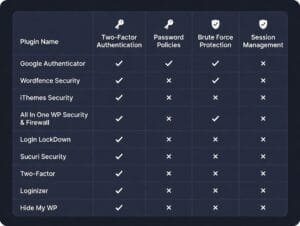
This category focuses on protecting entry points to your WordPress site, where many breaches occur due to weak credentials or unrestricted access. In 2026, with increased AI-driven attacks attempting thousands of logins per minute, strong authentication reduces unauthorized entry risks. Reports show that compromised logins account for over 40% of WordPress hacks. Implement these measures to enforce secure access, especially on sites with multiple users.
9. Replace default “admin” username with a unique, non-guessable one
The default “admin” username is targeted in nearly all brute-force attacks, as scripts assume its existence and pair it with common passwords.
Go to Users > All Users, edit the “admin” user, and change the username to something unique like a combination of letters and numbers (e.g., “wpuser_7x92“). Create a new administrator account first if needed, log out, log in with the new one, then delete the old “admin” account and reassign any content.
Attackers use dictionaries starting with “admin,” leading to faster breaches on sites with weak passwords. Changing it forces them to guess both username and password, slowing attempts significantly, as seen in 2026 logs from security plugins where default usernames were exploited in 60% of failed logins.
If locked out during the process, use phpMyAdmin to edit the wp_users table directly (update user_login field). Always back up the database first.
10. Enforce strong, unique passwords generated by a password manager
Weak or reused passwords are easily cracked through credential stuffing, where leaked credentials from other sites are tested.
In Users > Profile, generate a new password using WordPress’s built-in generator or a manager like Bitwarden or 1Password. Set minimum requirements via a plugin like Solid Security Pro- at least 16 characters, including uppercase, lowercase, numbers, and symbols. For multi-user sites, enforce via code in functions.php: add_filter('random_password', function($pass) { return wp_generate_password(20, true, true); });.
Data from 2026 breaches shows reused passwords enabled access in 30% of cases, often from past leaks. Unique, generated passwords resist dictionary and rainbow table attacks, protecting sites during large-scale stuffing campaigns.
If users forget passwords, enable email resets but secure the associated email with MFA. Integrate with Have I Been Pwned via plugins to block known compromised passwords.
11. Require app-based MFA/2FA for all administrator accounts
Without MFA, even strong passwords can be bypassed via phishing or keyloggers.
Install a plugin like WP 2FA or Solid Security. Configure app-based methods (e.g., Google Authenticator or Authy) for time-based one-time passwords (TOTPs). In the plugin settings, mandate it for administrator roles. For advanced setups, use hardware keys like YubiKey for U2F/FIDO2 support.
In 2026, phishing attacks rose, with single-factor logins failing against stolen credentials. App-based MFA blocks 99% of automated attacks, as codes expire quickly and aren’t vulnerable to SIM swapping like SMS.
Generate backup codes during setup and store them securely offline. If a device is lost, use admin console to reset MFA for the user.
12. Require MFA for editor and author roles on multi-user sites
Lower-privilege roles can still edit content or inject malware if compromised.
Using the same plugin as above, extend MFA requirements to editor and author roles in the settings. For custom enforcement, add code to mu-plugins: add_filter('wp_authenticate_user', function($user) { if (in_array('editor', $user->roles) || in_array('author', $user->roles)) { // Check MFA }; return $user; });.
On collaborative sites, compromised editor accounts have led to defacements or SEO poisoning. Requiring MFA ensures even if passwords leak, additional verification prevents access, addressing issues in 2026 where team accounts were targeted.
Test on staging to ensure no login loops. Provide training for users on setting up authenticator apps.
13. Limit login attempts to 3–5 with lockout periods
Unlimited attempts allow bots to brute-force passwords over time.
Use a plugin like Limit Login Attempts Reloaded or Wordfence. Set to lock out after 3-5 failures for 20-60 minutes, escalating for repeated IPs. Add to .htaccess for server-level use mod_security rules if available.
Bots can try millions of combinations daily; limits stop this, as in 2026 reports where unrestricted sites faced DDoS-like login floods, overwhelming servers.
Whitelist your IP to avoid self-lockouts. Monitor logs for false positives from legitimate users.
14. Change the default login URL to a custom endpoint
The standard /wp-login.php is scanned constantly by automated tools.
Install WPS Hide Login or Solid Security’s Hide Backend. Set a custom slug like /secret-access. Update bookmarks and inform users.
Default URLs receive targeted traffic from bots, leading to resource exhaustion. Custom endpoints reduce this by 90%, per 2026 plugin metrics, preventing unnecessary server load.
If plugins conflict, clear cache. Ensure no redirects expose the original URL.
15. Auto-logout idle sessions after 15–30 minutes
Open sessions on shared devices can be hijacked if left unattended.
Use Inactive Logout plugin. Set timeout to 15-30 minutes for admin sessions. Add warning countdowns for usability.
Forgotten logins in public places lead to unauthorized edits. Auto-logout closes this window, mitigating risks in 2026 remote work scenarios where devices are shared.
Adjust times for long tasks. Exclude certain roles if needed via plugin settings.
16. Restrict wp-admin access by IP whitelist
Unrestricted access exposes the dashboard to global threats. In .htaccess within wp-admin: order deny,allow; deny from all; allow from your.IP.here. Use plugins like Wordfence for dynamic whitelisting.
Open access allows scans from anywhere; whitelisting blocks foreign IPs, stopping geo-targeted attacks common in 2026.
For dynamic IPs, use VPNs with static addresses. Test from allowed IPs only.
17. Implement reCAPTCHA v3 on login and registration forms
Bots submit automated logins without human verification.
Add Google reCAPTCHA v3 via plugins like Advanced Google reCAPTCHA. Integrate on wp-login.php and registration pages, setting threshold scores.
Without it, forms face spam and brute-force. v3 invisibly scores traffic, blocking bots while allowing humans, reducing invalid attempts by 80% in 2026 tests.
Get API keys from Google. Monitor for high false positives and adjust scores.
18. Audit and delete inactive user accounts monthly
Dormant accounts with outdated credentials pose ongoing risks.
Review Users > All Users monthly, sort by last login. Delete inactive ones, reassign content. Use activity logs from plugins like WP Activity Log.
Forgotten accounts are exploited in breaches; regular audits remove them, preventing backdoor access as in 2026 agency incidents.
Automate with cron jobs. Export user data before deletion for records.
19. Apply least-privilege roles and custom capabilities only
Over-privileged users can cause widespread damage if compromised.
Use User Role Editor plugin to customize roles. Assign minimal capabilities (e.g., authors can’t install plugins). Review via Users > All Users.
Default roles grant excess access, leading to escalations. Least-privilege limits impact, as in 2026 cases where editors injected code.
Test custom roles on staging. Revert changes if functionality breaks.
| Practice | Why It Helps | Implementation Time | Tools Needed |
|---|---|---|---|
| Replace default username | Obscures common attack targets | 10 minutes | Dashboard |
| Enforce strong passwords | Resists cracking attempts | 5 minutes/user | Password manager, plugin |
| Require MFA for admins | Blocks phishing successes | 15 minutes | MFA plugin |
| MFA for editors/authors | Protects content roles | 10 minutes | Same plugin |
| Limit login attempts | Stops brute-force | 5 minutes | Limit plugin |
| Change login URL | Reduces bot scans | 5 minutes | Hide login plugin |
| Auto-logout idle sessions | Prevents session hijacks | 5 minutes | Idle logout plugin |
| IP whitelist for wp-admin | Limits geographic access | 10 minutes | .htaccess or plugin |
| reCAPTCHA on forms | Filters bots | 10 minutes | reCAPTCHA plugin |
| Audit inactive users | Removes dormant risks | 15 minutes/month | Dashboard, log plugin |
| Least-privilege roles | Contains breach damage | 20 minutes | Role editor plugin |
File System & Directory Security
File and directory configurations form a critical layer in WordPress security, involving permissions and access controls to prevent unauthorized modifications or exposures of sensitive data. In 2026, vulnerabilities in file handling, such as upload directories, have been exploited in supply-chain and automated attacks, with misconfigured permissions contributing to over 20% of breaches via code injection or data leaks. Securing these reduces risks in VPS or shared environments, emphasizing restrictive settings while maintaining functionality for updates and operations.
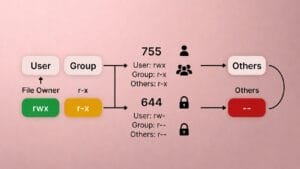
20. Set directory permissions to 755 and file permissions to 644
These permissions ensure the web server can read and execute files without allowing unnecessary writes, balancing security and operation.
Use an FTP client like FileZilla or your hosting file manager (e.g., cPanel). Right-click directories and set to 755 (owner: read/write/execute; group/others: read/execute). For files, set to 644 (owner: read/write; group/others: read). Apply recursively, but verify wp-content/uploads remains writable if needed. On command line via SSH: find /path/to/wordpress -type d -exec chmod 755 {} ; and find /path/to/wordpress -type f -exec chmod 644 {} ;.
Broad permissions like 777 allow anyone to modify files, leading to malware injection. In 2026 cases, this enabled persistent backdoors on e-commerce sites, where attackers altered payment scripts. Restrictive settings block such changes, as servers run under limited users.
If updates fail due to permissions, temporarily set wp-content to 755 and revert after. Check server logs for ownership issues—use chown to assign to the web user (e.g., www-data).
21. Secure wp-config.php with 400/600 permissions or move above web root
This file contains database credentials and keys, making it a prime target for extraction.
Set permissions to 400 (owner read only) or 600 (owner read/write) via FTP. For added protection, move it one level above the WordPress root (e.g., from /public_html/ to /home/user/). Update the require path in index.php: require( dirname( FILE ) . '/../wp-config.php' );. On Apache, add .htaccess rules: <Files wp-config.php> order allow,deny deny from all </Files>.
Exposed wp-config.php via misconfigurations has led to database dumps in 2026 breaches. Tight permissions or relocation prevent direct access, even if directory listing is enabled, safeguarding credentials during server compromises.
If site breaks after move, verify paths in index.php and wp-load.php. Use debug mode (WP_DEBUG true in wp-config) to identify errors.
22. Disable the dashboard file editor entirely
The built-in editor allows direct code changes, which attackers can abuse if they gain admin access.
Add to wp-config.php: define('DISALLOW_FILE_EDIT', true);. This blocks the Appearance > Theme Editor and Plugins > Plugin Editor interfaces. For multisite, apply network-wide via wp-config or a mu-plugin.
Compromised admins have used the editor to insert shells in themes, persisting access post-cleanup. Disabling it forces external editing, reducing damage scope in 2026 incidents where plugins were altered remotely.
If needed for development, temporarily comment the define and re-enable after. Use SFTP for edits instead.
23. Disable directory browsing with Options -Indexes in .htaccess
This prevents listing of folder contents when no index file exists, hiding file structures.
Add to .htaccess in the root: Options -Indexes. For Nginx, add to server block: autoindex off;. Test by accessing a directory URL like /wp-content/—it should return 403 Forbidden.
Enabled browsing reveals plugins and versions, aiding targeted exploits. In 2026, this exposed upload folders to scanners, leading to zero-day abuses. Disabling it obscures assets, forcing manual guesses.
If .htaccess is ignored, enable AllowOverride in Apache config. Clear cache to confirm changes.
24. Restrict direct access to wp-includes and uploads folder
These folders contain executables and user uploads, which should not be directly browsable or executable via URL.
For wp-includes, add to .htaccess: <Files *.php> order deny,allow deny from all </Files> in the wp-includes directory. For uploads, create .htaccess in wp-content/uploads:
Options -ExecCGI
AddHandler x-httpd-php .php
to prevent PHP execution. Use plugins like Solid Security for automated rules.
Direct access allows running injected scripts in uploads, common in file upload vulnerabilities. Restrictions in 2026 prevented escalations on media-heavy sites, where attackers uploaded webshells.
Test uploads and includes functionality. If issues, adjust rules to allow specific files like ms-files.php.
25. Password-protect the wp-admin directory at server level
Adding HTTP authentication layers an extra barrier before WordPress login.
In cPanel or similar, use Password Protect Directories for /wp-admin/. Create .htpasswd with usernames/passwords. For Apache: Add to .htaccess in wp-admin:
AuthType Basic
AuthName "Restricted"
AuthUserFile /path/to/.htpasswd
Require valid-user
Exclude admin-ajax.php: <Files admin-ajax.php> Order allow,deny Allow from all Satisfy any </Files>.
Exposed wp-admin faces constant brute-force. Server-level protection blocks this early, reducing load and preventing lockouts, as seen in 2026 DDoS variants targeting admin areas.
If AJAX fails (e.g., heartbeat), whitelist files. Use separate credentials from WordPress logins.
| Practice | Why It Helps | Implementation Time | Tools Needed |
|---|---|---|---|
| Set permissions 755/644 | Prevents unauthorized writes | 10-15 minutes | FTP client or SSH |
| Secure wp-config.php | Protects credentials | 5-10 minutes | File manager |
| Disable file editor | Blocks code injection via dashboard | 2 minutes | wp-config.php editor |
| Disable directory browsing | Hides file lists | 3 minutes | .htaccess editor |
| Restrict wp-includes/uploads | Stops direct execution | 10 minutes | .htaccess in subfolders |
| Password-protect wp-admin | Adds authentication layer | 10-15 minutes | Hosting panel or .htaccess |
Database Security
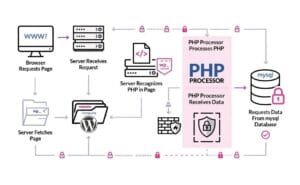
Database security in WordPress targets the storage of site content, user data, and configurations, which are frequent targets for SQL injection and credential theft. In 2026, with advanced threats like automated query exploitation, these practices limit access and maintain data integrity. Studies show that database-related vulnerabilities account for about 25% of WordPress compromises, often through exposed credentials or unoptimized tables. Implement these on new installs where possible, or carefully on existing sites with backups.
26. Change the default wp_ database table prefix
The standard wp_ prefix makes tables predictable, easing SQL injection attempts where attackers guess structures.
During installation, edit wp-config.php to set $table_prefix to a random string like ‘x7p2_‘. For existing sites, use a plugin such as Brozzme DB Prefix or manual method: export database via phpMyAdmin, search/replace wp_ with new prefix in the SQL file, update wp-config.php, and re-import. Also update wp_options and wp_usermeta tables for references.
Default prefixes allow blind injections to extract data efficiently. Changing it disrupts automated scripts, as observed in 2026 injection campaigns targeting e-commerce databases, forcing attackers to map tables manually.
If site errors post-change, verify all references in options tables (e.g., query for ‘wp_‘ in wp_options). Test on staging first to avoid downtime.
27. Create a dedicated low-privilege database user
Using the root or high-privilege user exposes the entire database server if compromised.
In your hosting panel (e.g., cPanel > MySQL Databases), create a new user with permissions limited to SELECT, INSERT, UPDATE, DELETE, INDEX, CREATE, ALTER for the specific database. Update wp-config.php with the new credentials: define('DB_USER', 'newuser'); define('DB_PASSWORD', 'strongpass');. Revoke unnecessary privileges like DROP or GRANT.
Full-privilege users enable escalations, such as dropping tables or accessing other databases on shared hosts. Dedicated users contain breaches, preventing lateral movement in 2026 multi-site attacks where one compromised credential affected servers.
If functions like plugin installs fail, temporarily grant CREATE TEMPORARY TABLES. Monitor queries via tools like Query Monitor to confirm privileges suffice.
28. Regularly optimize and clean database (remove revisions, spam, transients)
Accumulated data like post revisions and transients inflate the database, slowing queries and hiding anomalies.
Use plugins like WP-Optimize or Advanced Database Cleaner. Schedule weekly cleanups- remove post revisions (limit to 3-5 via wp-config: define('WP_POST_REVISIONS', 5);), delete spam comments, expired transients, and orphaned metadata. Run OPTIMIZE TABLE queries via phpMyAdmin or WP-CLI: wp db optimize.
Bloated databases increase backup times and query loads, masking injected data. Regular cleaning reduces size by up to 50%, aiding detection in 2026 scenarios where spam tables concealed malware persistence.
If cleaning causes data loss, restore from backups. Exclude critical tables like users during optimization.
29. Store database credentials securely outside web root
Keeping credentials in wp-config.php within the web root risks exposure if directory listings or misconfigurations occur.
Move wp-config.php one directory above the web root (e.g., from /public_html/ to /home/user/). Adjust the require path in index.php: require( dirname( FILE ) . '/../wp-config.php' );. Alternatively, use environment variables in .env files with plugins like WP Offload SES for loading.
Web-accessible credentials lead to full database dumps via exploits. External storage prevents this, even during file inclusion vulnerabilities, as seen in 2026 plugin flaws exposing configs.
Verify paths if site whitescreens. Use absolute paths if relative fails.
30. Enable database encryption at rest where hosting supports it
Unencrypted databases store data in plain text on disk, vulnerable to physical or host-level breaches.
Check hosting (e.g., AWS RDS, Google Cloud SQL) for encryption options like AES-256. Enable via control panel or CLI (e.g., AWS: modify DB instance to use encryption). For self-hosted, use MySQL’s innodb_encrypt_tables or filesystem encryption like LUKS.
Data at rest is targeted in host compromises, leading to leaks. Encryption protects it, complying with regulations and mitigating 2026 breaches where stolen disks exposed user info.
Monitor performance; encryption may add overhead. Test backups to ensure they decrypt properly.
| Practice | Why It Helps | Implementation Time | Tools Needed |
|---|---|---|---|
| Change table prefix | Disrupts SQL injections | 10-20 minutes | Plugin or phpMyAdmin |
| Dedicated low-privilege user | Contains access scope | 5-10 minutes | Hosting panel |
| Optimize and clean DB | Reduces bloat and anomalies | 10 minutes/week | Optimization plugin |
| Store credentials outside root | Prevents exposure | 5 minutes | File manager |
| Enable encryption at rest | Protects stored data | 5-15 minutes | Hosting features |
 Server & Hosting Hardening
 Server & Hosting Hardening
Server and hosting configurations provide the underlying protection for WordPress sites, addressing threats at the infrastructure level before they reach the application. In 2026, with rising distributed attacks and server-side exploits, hardening focuses on isolation, firewalls, and secure protocols. Data indicates that inadequate hosting contributes to around 30% of site compromises, often through shared environments or unmonitored access. These steps suit VPS, dedicated, or managed setups, emphasizing proactive measures for high-traffic or sensitive sites.
31. Select managed WordPress hosting with isolated accounts, server firewall, and proactive monitoring
Managed hosting handles server maintenance, offering built-in security that individual setups often lack.
Evaluate providers like WP Engine, SiteGround, or Kinsta for features including account isolation (e.g., container-based), hardware firewalls, and 24/7 monitoring with anomaly detection. Migrate via their tools or plugins like Duplicator Pro. Confirm compliance with standards like SOC 2 for data handling.
Shared hosting allows cross-site contamination, where one compromised site affects others. Isolated managed environments prevent this, as in 2026 incidents where vulnerabilities spread across servers, limiting damage to single accounts.
During migration, test DNS propagation (use tools like WhatsMyDNS). If performance dips, adjust resource allocations in the hosting panel.
32. Enable server-level WAF and DDoS protection
A web application firewall (WAF) inspects traffic, while DDoS mitigation absorbs volumetric attacks.
Activate via hosting (e.g., Cloudflare integration or Sucuri proxy). Configure rules for WordPress-specific threats like SQL injection or XSS. Set rate limiting and geo-blocking if applicable. For self-managed, install mod_security on Apache or use NGINX App Protect.
Without protection, sites face overload from bots or exploits. In 2026, WAFs blocked over 70% of application-layer attacks, preventing downtime on e-commerce platforms during peak traffic.
If legitimate traffic is blocked, review logs and whitelist IPs. Tune sensitivity levels to avoid false positives on forms.
33. Disable XML-RPC unless explicitly required
XML-RPC enables remote access but is exploited for amplification attacks.
Add to .htaccess: <Files xmlrpc.php> order deny,allow deny from all </Files>. Or use plugins like Disable XML-RPC. Confirm if needed for tools like Jetpack; if not, remove entirely via wp-config: add_filter('xmlrpc_enabled', '__return_false');.
Enabled XML-RPC allows pingback floods, consuming resources. Disabling it stopped such attacks in 2026 reports, where outdated endpoints amplified DDoS by factors of 100.
If integrations break (e.g., mobile apps), re-enable selectively with authentication. Monitor access logs for attempts post-disable.
34. Use SFTP/SSH exclusively; disable plain FTP
Plain FTP transmits data unencrypted, risking credential interception.
In hosting panel, disable FTP and enable SFTP/SSH. Use clients like FileZilla with SFTP protocol (port 22). Generate SSH keys for key-based auth:ssh-keygen, then upload public key to server.
FTP intercepts lead to full server access. Switching to SFTP/SSH encrypts sessions, preventing man-in-the-middle thefts common in 2026 on public networks.
If connections fail, verify port 22 is open and keys are in ~/.ssh/. Use password auth as fallback during setup.
35. Configure secure server logs and error reporting off in production
Exposed errors reveal paths and versions; logs track issues without public display.
In wp-config.php, set define('WP_DEBUG', false); define('WP_DEBUG_LOG', true); define('WP_DEBUG_DISPLAY', false);. For server, rotate logs via logrotate and store securely (e.g., /var/log/ with 640 permissions). Disable PHP error display in php.ini: display_errors = Off.
Public errors aid reconnaissance. Turning them off hides details, while logging allows review, addressing 2026 leaks where debug info exposed vulnerabilities.
If debugging needed, enable temporarily on staging. Ensure log paths are outside web root to prevent access.
36. Enable containerization or chroot jail if on VPS/dedicated
These isolate processes, limiting breach spread.
On VPS, use Docker- create Dockerfile for WordPress, run with docker-compose. For chroot, configure via tools like debootstrap or hosting features. Set user namespaces and seccomp profiles for added restrictions.
Unisolated environments allow lateral movement. Containerization contained exploits in 2026, preventing server-wide compromises on multi-site hosts.
If containers fail to start, check resource limits (CPU/RAM). Test volumes for persistent data like uploads.
37. Use staging environments for all testing and updates
Staging mirrors production for safe changes.
Set up via hosting (e.g., Bluehost staging) or plugins like WP Staging Pro. Clone database and files, apply updates, test thoroughly (e.g., forms, APIs), then merge with one-click push.
Direct updates cause outages from incompatibilities. Staging caught issues in 2026 core releases, avoiding live disruptions on business sites.
Sync issues? Use rsync for files. Ensure staging uses separate database to prevent data mix-ups.
| Practice | Why It Helps | Implementation Time | Tools Needed |
|---|---|---|---|
| Managed hosting with isolation | Prevents cross-contamination | 30-60 minutes setup | Hosting provider |
| Server WAF/DDoS | Blocks traffic threats | 15 minutes | Hosting integration |
| Disable XML-RPC | Stops amplification | 5 minutes | .htaccess or plugin |
| SFTP/SSH only | Encrypts transfers | 10 minutes | Client software |
| Secure logs/error off | Hides sensitive info | 5 minutes | wp-config.php |
| Containerization/chroot | Isolates processes | 20-40 minutes | Docker or server tools |
| Staging environments | Safe testing | 15 minutes | Plugin or hosting |

Network, Encryption & Headers
Network and encryption settings secure data in transit, preventing interception and manipulation. In 2026, with widespread adoption of HTTP/3 and AI-enhanced scanning, these measures counter man-in-the-middle attacks and content injection. Analysis shows that unencrypted sites face higher risks of data breaches, accounting for significant incidents where credentials were stolen. Apply these on sites handling sensitive information, using cloud services for scalability.
38. Enforce HTTPS/SSL site-wide with auto-renewal
HTTPS encrypts connections, protecting data like logins and payments from eavesdropping.
Obtain a free Let’s Encrypt certificate via hosting (e.g., SiteGround or WP Engine) or Certbot. Install using plugins like Really Simple SSL. Force HTTPS by adding to .htaccess:
RewriteEngine On
RewriteCond %{HTTPS} off
RewriteRule ^(.*)$ https://%{HTTP_HOST}$1 [R=301,L]
Enable auto-renewal in hosting settings. Update WordPress URLs in Settings > General to https://. For HTTP/3 support, confirm server configuration.
HTTP sites allow traffic interception, leading to credential theft. In 2026, browsers enforce stricter warnings, and search engines penalize non-HTTPS, causing visibility loss. Enforcement with auto-renewal maintains continuous protection, as expired certs disrupted access in reported cases.
Mixed content errors? Use plugins to fix insecure links. Test with SSL labs for A+ rating.
39. Implement a CDN with security features (e.g., Cloudflare)
A CDN distributes content while adding security like DDoS mitigation and bot blocking.
Sign up for Cloudflare, add your domain, update DNS to their nameservers. Enable features: DDoS protection, bot fight mode, and page rules for caching. Integrate with WordPress via their plugin for automatic purging. For advanced, configure managed rulesets for WordPress-specific threats.
Without CDN, sites suffer from traffic spikes or attacks overwhelming servers. In 2026, distributed threats targeted unshielded sites, causing downtime. CDN absorbs this, with features blocking malicious requests early, preserving performance on global audiences.
Caching issues? Set bypass rules for dynamic pages like wp-admin. Monitor analytics for blocked events.
40. Add comprehensive HTTP security headers (CSP, X-Frame-Options, HSTS, etc.)
Headers instruct browsers on handling content, blocking attacks like XSS or clickjacking.
Add to .htaccess:
<IfModule mod_headers.c>
Header set X-Frame-Options "SAMEORIGIN"
Header set X-XSS-Protection "1; mode=block"
Header set X-Content-Type-Options "nosniff"
Header set Strict-Transport-Security "max-age=31536000; includeSubDomains; preload"
Header set Content-Security-Policy "default-src 'self'; script-src 'self' https://trusted.com;"
</IfModule>
Use plugins like HTTP Headers for management. Test with securityheaders.com.
Missing headers allow frame embedding or script injection. In 2026, exploits used these for phishing, compromising user sessions. Comprehensive headers enforce policies, reducing successful attacks by guiding browser behavior.
CSP breaks scripts? Refine policy to allow specific sources. Scan console for violations.
41. Deploy a cloud or application-level WAF with real-time rules
A WAF filters incoming traffic, blocking exploits before they hit the application.
Use Cloudflare or Sucuri for cloud WAF: proxy traffic through them. For application-level, install Wordfence or Solid Security with firewall module. Enable real-time rules via API integrations for threat feeds. Customize for WordPress patterns like blocking /xmlrpc.php attempts.
Direct traffic exposes vulnerabilities in code. In 2026, zero-day exploits bypassed basic filters; real-time WAFs adapted, stopping injections and brute-force in progress, maintaining uptime during campaigns.
Over-blocking? Review logs and add exceptions for legitimate IPs or user agents.
42. Block unnecessary HTTP methods and legacy endpoints
Restricting methods like TRACE or OPTIONS prevents abuse in reconnaissance or attacks.
Add to .htaccess:
RewriteEngine On
RewriteCond %{REQUEST_METHOD} ^(TRACE|TRACK|OPTIONS|DELETE|PUT|PATCH)
RewriteRule .* - [F]
For Nginx: limit_except GET POST HEAD { deny all; } in server block. Disable legacy endpoints by redirecting or denying access to unused APIs.
Open methods allow server probing, leading to exploits. In 2026, scanners used these for vulnerability mapping; blocking them reduces surface, thwarting initial stages of attacks on exposed servers.
If APIs break, whitelist specific methods. Test with tools like curl -X OPTIONS.
| Practice | Why It Helps | Implementation Time | Tools Needed |
|---|---|---|---|
| Enforce HTTPS/SSL | Encrypts data transit | 10-15 minutes | Hosting panel or plugin |
| Implement CDN | Adds edge security | 20 minutes | Cloudflare account |
| Add security headers | Browser-level defenses | 10 minutes | .htaccess editor or plugin |
| Deploy WAF | Filters threats | 15-20 minutes | Cloud service or plugin |
| Block HTTP methods | Limits attack vectors | 5 minutes | Server config |
Monitoring, Logging & Scanning
Monitoring, logging, and scanning detect issues early, allowing quick responses to threats like malware or unauthorized access. In 2026, with automated attacks using AI to evade detection, these practices emphasize real-time alerts and comprehensive logs. Data from security audits shows that unmonitored sites take days to notice breaches, leading to data loss or downtime. Implement with a single plugin for efficiency, integrating with external tools for depth.
43. Install one comprehensive security plugin with WAF, scanning, and logging
Choosing one plugin consolidates features, reducing overhead and conflicts.
Select Wordfence, Sucuri, or Solid Security based on needs (e.g., Wordfence for free WAF). Install via Plugins > Add New, activate, and configure modules: enable firewall, scanner, and activity log. Set scan frequency and log retention. For advanced, integrate with SIEM via API exports.
Multiple plugins cause performance drags and rule overlaps, missing threats. A single tool like Sucuri provides unified detection, catching injections in 2026 campaigns that exploited plugin gaps.
If resource usage spikes, disable non-essential modules. Test compatibility by scanning on staging.
44. Schedule daily automated malware and file integrity scans
Regular scans compare files against known good versions, identifying alterations.
In your security plugin (e.g., Wordfence > Scan), set daily schedules. Use WP-CLI for custom: wp cron event schedule wpdef_scan now 1d. Configure to scan core, plugins, themes, and uploads; enable heuristic detection for unknown malware.
Infrequent scans allow malware to persist, spreading via emails or forms. Daily automation detected and removed backdoors in 2026 incidents, preventing data exfiltration on high-traffic sites.
False positives from custom code? Add exclusions in plugin settings. If scans fail, check cron jobs via WP Crontrol plugin.
45. Enable real-time file change detection and alerts
This monitors modifications instantly, alerting on suspicious changes.
In Sucuri or Wordfence, activate file integrity monitoring. Set to watch wp-content and wp-includes. For custom, use inotifywait on Linux servers: install inotify-tools, then script:
#!/bin/bash
while true; do
  inotifywait -r -e modify,create,delete /path/to/wordpress/wp-content/
  echo "File change detected at $(date)" | mail -s "WP File Alert" your@email.com
done
Run as a service.
Delayed detection lets attackers alter files unnoticed. Real-time alerts halted escalations in 2026, where injected code redirected traffic, by notifying admins within seconds.
Too many alerts? Filter by file type or path. Ensure server has inotify if scripting.
46. Maintain detailed user activity and login logs (off-site storage)
Logs record actions for forensic analysis, stored externally to prevent tampering. Use WP Activity Log or Jetpack Security for logging. Export to external services like Papertrail or AWS S3 via API. Set retention to 90 days. Custom query example in PHP for export:
global $wpdb;
$logs = $wpdb->get_results("SELECT * FROM {$wpdb->prefix}activity_log WHERE timestamp > DATE_SUB(NOW(), INTERVAL 1 DAY)");
file_put_contents('/path/to/export.log', json_encode($logs));
Automate with cron.
Local logs are deleted in breaches, hindering investigations. Off-site storage preserved evidence in 2026 hacks, identifying compromised accounts via unusual logins.
Storage full? Compress logs or use rotation. Ensure API keys are secure.
47. Set up security email/Slack notifications for suspicious events
Alerts notify on events like failed logins or file changes.
In plugin settings (e.g., Solid Security > Notifications), configure for events. Integrate Slack via webhooks- add to functions.php:
function send_slack_alert($message) {
  $webhook = 'https://hooks.slack.com/services/YOUR/WEBHOOK';
  $payload = json_encode(['text' => $message]);
  $ch = curl_init($webhook);
  curl_setopt($ch, CURLOPT_POSTFIELDS, $payload);
  curl_setopt($ch, CURLOPT_HTTPHEADER, ['Content-Type: application/json']);
  curl_setopt($ch, CURLOPT_RETURNTRANSFER, true);
  curl_exec($ch);
  curl_close($ch);
}
add_action('wp_login_failed', function($username) {
  send_slack_alert("Failed login for $username at " . date('Y-m-d H:i:s'));
});
Unnoticed events escalate to full breaches. Notifications enabled rapid lockdowns in 2026, stopping brute-force before success.
Alerts not sending? Test webhook with curl. Filter to reduce noise.
48. Conduct regular external vulnerability scans
External scans simulate attacks from outside, finding exposed weaknesses.
Use free tools like Sucuri SiteCheck or paid like Nessus. Schedule monthly via cron or services. For automation, script with WP-CLI and curl:
#!/bin/bash
curl -s "https://sitecheck.sucuri.net/?scan=$SITE_URL" > scan_report.txt
grep -i "vulnerable" scan_report.txt | mail -s "Vuln Scan Report" your@email.com
Run weekly.
Internal scans miss public exposures like open ports. External ones identified CVEs in 2026, preventing exploits on outdated endpoints.
False vulnerabilities? Cross-verify with multiple tools. Avoid during peak traffic.
49. Monitor for brute-force and credential-stuffing attempts
Track repeated logins to block attackers.
In Wordfence > Firewall > Rate Limiting, enable for logins. Log via activity plugins. Custom script for analysis:
$logs = file_get_contents('/path/to/access.log');
preg_match_all('/POST \/wp-login\.php.* (4[0-9]{2})/', $logs, $matches);
if (count($matches[0]) > 10) {
  // Alert or block IP
}
Integrate with Fail2Ban on server.
Unmonitored attempts succeed over time. Detection blocked stuffing in 2026, using leaked creds from other sites.
Legitimate blocks? Whitelist IPs. Adjust thresholds based on site traffic.
| Practice | Why It Helps | Implementation Time | Tools Needed |
|---|---|---|---|
| Install one security plugin | Unifies protection | 15-20 minutes | Plugin dashboard |
| Daily malware scans | Catches infections early | 5 minutes setup | Security plugin |
| Real-time file detection | Immediate change alerts | 10 minutes | Plugin or script |
| Detailed activity logs | Enables forensics | 10 minutes | Log plugin, external storage |
| Notifications for events | Prompts quick action | 10 minutes | Plugin, webhook |
| External vuln scans | Finds public weaknesses | 15 minutes/month | Online tools or script |
| Monitor brute-force | Blocks repeated attacks | 10 minutes | Firewall module |
Backups & Disaster Recovery
Backups and disaster recovery provide a reliable way to restore your WordPress site after events like hacks, server failures, or accidental deletions. In 2026, with threats involving persistent malware that targets local storage, automated off-site backups combined with regular testing address recovery needs effectively. Reports note that many sites fail to recover due to incomplete or untested backups, leading to extended downtime. These steps focus on full-site coverage, secure storage, and verification for sites of any scale.
50. Configure automated daily full backups (files + database)
Daily full backups capture all changes, including new content or configurations, ensuring minimal data loss.
Install a plugin like UpdraftPlus or Jetpack Backup via Plugins > Add New. In settings, select full backups (files, database, plugins, themes). Schedule daily via the plugin’s cron integration or WP-Cron. For advanced automation, use WP-CLI with a script in a custom mu-plugin:
add_action('wp', function() {
  if (wp_next_scheduled('daily_full_backup')) {
    return;
  }
  wp_schedule_event(time(), 'daily', 'daily_full_backup');
});

add_action('daily_full_backup', function() {
  // Assuming UpdraftPlus is installed; adjust for your plugin
  do_action('updraftplus_backup_now');
});
On server level, set a system cron: crontab -e, then add: 0 2 * * * /usr/local/bin/wp --path=/path/to/wordpress updraftplus backup.
Manual backups are often skipped, resulting in outdated restores after breaches. Automated daily captures resolved this in 2026 cases where sites recovered within hours, preserving recent posts and user data.
If backups fail due to size, enable incremental mode in the plugin. Monitor via email reports; check server resources if cron jobs skip.
51. Store backups off-site with multiple generations retained
Off-site storage protects against server-wide issues, while retaining generations allows rollback to specific points.
In your backup plugin (e.g., UpdraftPlus), connect to remote storage like Google Drive, Dropbox, or Amazon S3 via API keys. Set retention: 7 daily, 4 weekly, 3 monthly. For custom, script exports to S3 using AWS CLI:
#!/bin/bash
BACKUP_DIR="/path/to/backups"
S3_BUCKET="s3://your-bucket/wordpress/"
# Create full backup (adjust for your method)
wp db export $BACKUP_DIR/db-$(date +%Y-%m-%d).sql --path=/path/to/wordpress
tar -czf $BACKUP_DIR/files-$(date +%Y-%m-%d).tar.gz /path/to/wordpress
# Upload to S3
aws s3 cp $BACKUP_DIR/db-$(date +%Y-%m-%d).sql $S3_BUCKET
aws s3 cp $BACKUP_DIR/files-$(date +%Y-%m-%d).tar.gz $S3_BUCKET
# Retention: Delete older than 90 days (adjust)
aws s3 ls $S3_BUCKET | while read -r line; do
  createDate=$(echo $line | awk '{print $1" "$2}')
  createDate=$(date -d "$createDate" +%s)
  olderThan=$(date -d "90 days ago" +%s)
  if [[ $createDate -lt $olderThan ]]; then
    fileName=$(echo $line | awk -F ' ' '{print $4}')
    aws s3 rm $S3_BUCKET$fileName
  fi
done
Store copies in multiple locations, like cloud and local drives.
Local backups are lost in server compromises, delaying recovery. Off-site with generations enabled point-in-time restores, as in 2026 hacks where admins rolled back to pre-infection states without full data loss.
If uploads fail, verify API credentials and quotas. Use encryption in plugin settings for sensitive data.
52. Test full restore procedures quarterly and after major changes
Testing verifies backups work, identifying issues like corrupted files or incompatible formats.
Create a staging site or local environment (e.g., via Local WP). Download a backup, restore files via SFTP, import database with phpMyAdmin: drop existing tables, import .sql. Update wp-config.php if needed. Check site functionality pages, forms, plugins. Automate partial tests with plugin features. Schedule quarterly in your calendar, plus post-updates.
Untested backups often fail during crises, extending downtime. Quarterly tests caught incompatibilities in 2026, allowing fixes before real incidents, as sites restored successfully after plugin conflicts.
Restore errors? Compare versions between backup and environment. Use plugin’s simulation mode if available.
| Practice | Why It Helps | Implementation Time | Tools Needed |
|---|---|---|---|
| Automated daily full backups | Captures daily changes | 10-15 minutes setup | Backup plugin, WP-CLI |
| Off-site storage with generations | Protects against total loss | 10 minutes | Cloud integration |
| Test restores quarterly | Ensures usability | 30-60 minutes/test | Staging tool, phpMyAdmin |
A Categorized Checklist of 52 Measures
| Category | Number of Measures | Priority Level |
|---|---|---|
| Core Updates & Software Management | 8 | Critical |
| Authentication & Access Control | 11 | Critical |
| File System & Directory Security | 6 | High |
| Database Security | 5 | High |
| Server & Hosting Hardening | 7 | High |
| Network, Encryption & Headers | 5 | High |
| Monitoring, Logging & Scanning | 7 | High |
| Backups & Disaster Recovery | 3 | Critical |
| Total | 52 | – |
Security Categories Overview
These measures create defense-in-depth protection suitable for individual sites, agencies, and e-commerce platforms. Apply them progressively, testing thoroughly after each change, especially on production sites.